MoniSa Enterprise · Help
How to sign in with your authenticator code
The portal asks for three things: your email, your password, and a 6-digit code from an app on your phone. This page shows you how to set it up once and then sign in every day.
1. Install the app
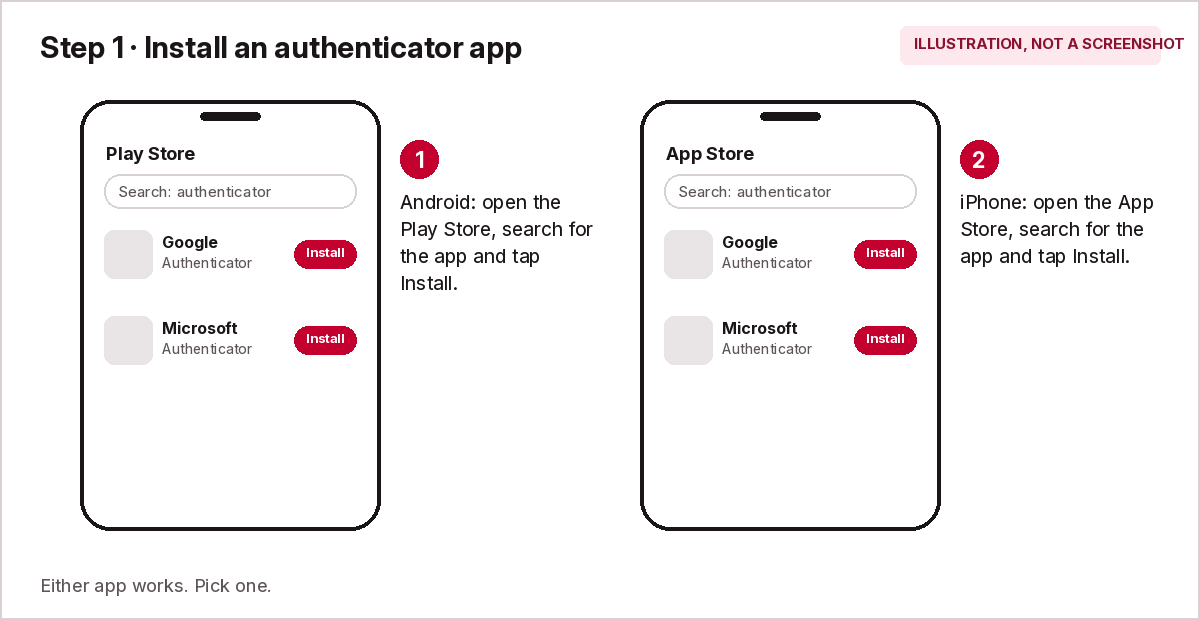
On your phone, install Google Authenticator or Microsoft Authenticator. Both are free.
- Android: open the Play Store and search for the app name.
- iPhone: open the App Store and search for the app name.
2. Open your setup link
Sahil sends you a personal setup link. Open it on your computer. The link works once and only for 24 hours. Do not share it.
The page shows your email, two password boxes, a QR code and a setup key.
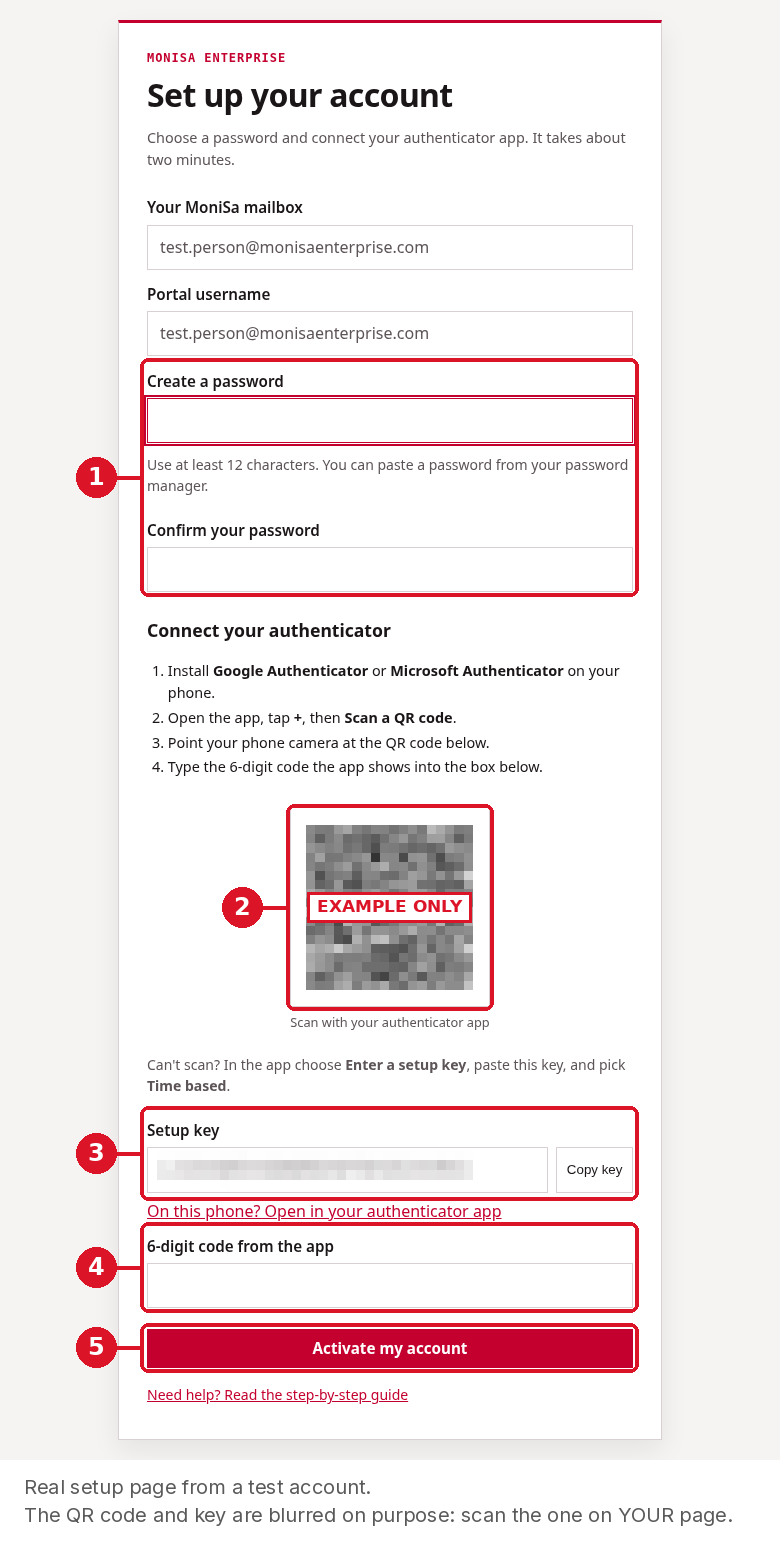
- Create your password, then type it again.
- The QR code. Scan this with the app (step 3).
- The setup key. Use it only if you can't scan.
- Type the 6-digit code from the app.
- Click Activate my account.
3. Scan the QR code
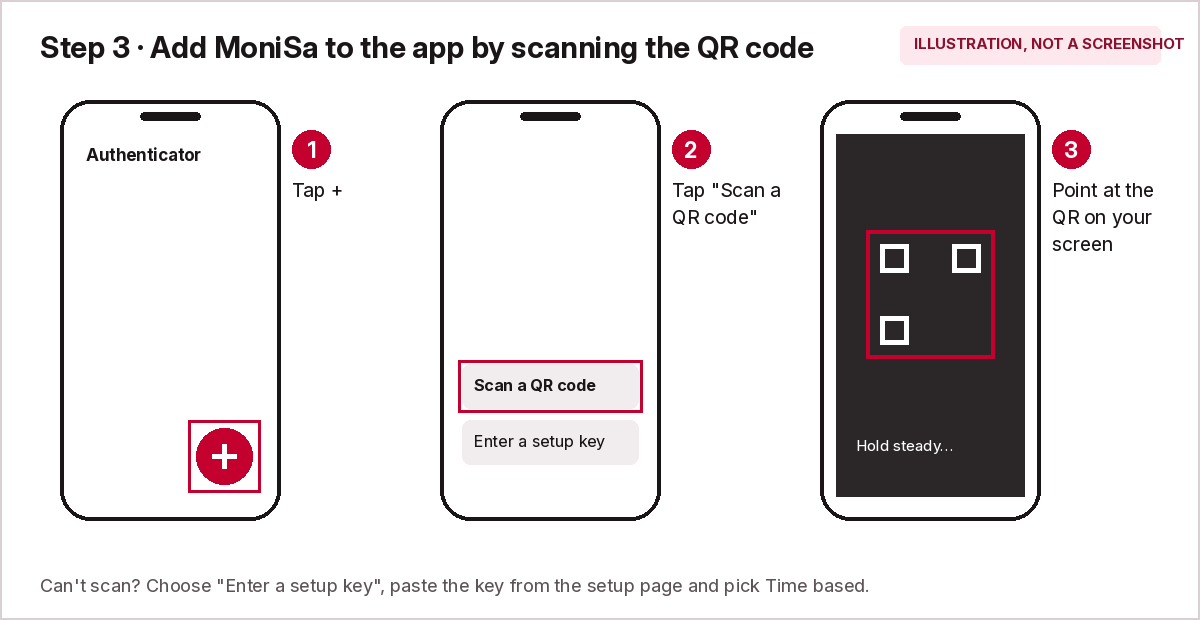
- Open the authenticator app.
- Tap + (add).
- Tap Scan a QR code.
- Point the camera at the QR code on your computer screen.
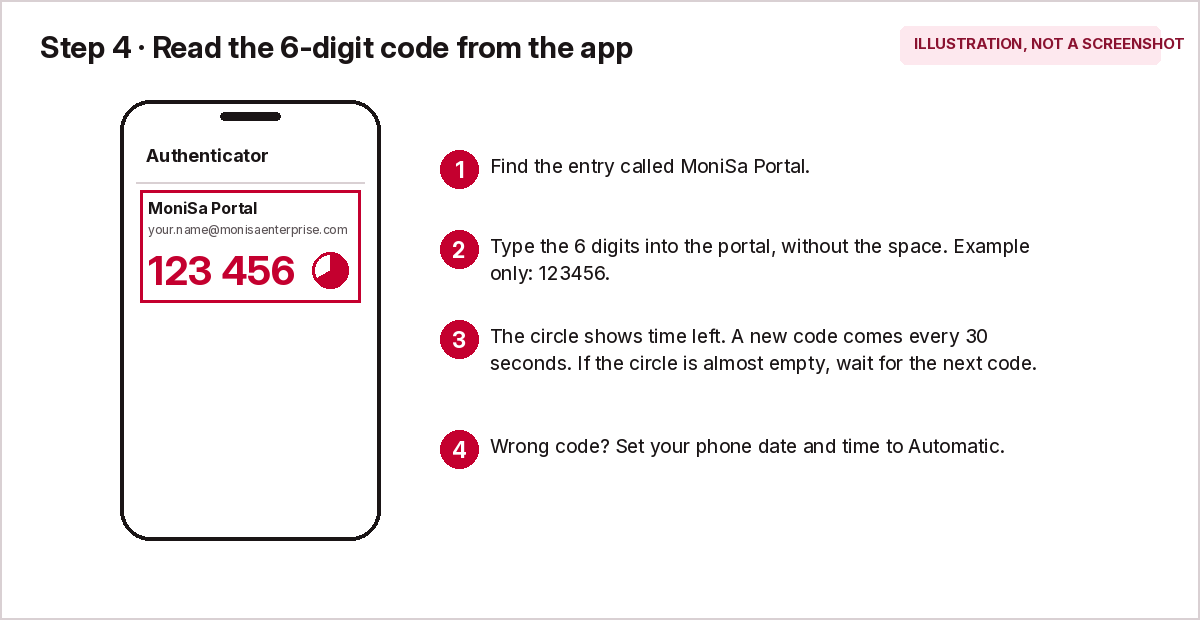
The app now shows MoniSa Portal with a 6-digit code that changes every 30 seconds.
Can't scan? Tap Enter a setup key instead. Copy the key from the page (use the Copy key button), paste it into the app, and choose Time based.
4. Set your password and finish
- Type a password of at least 12 characters, twice.
- Type the 6-digit code the app shows now.
- Click Activate my account.
Done. Wait for the next code to appear before you sign in for the first time.
5. Sign in every day
- Go to database.monisaenterprise.com.
- Type your MoniSa email as the username.
- Type your password.
- Open the app and type the 6-digit code you see.
- Click Sign in.
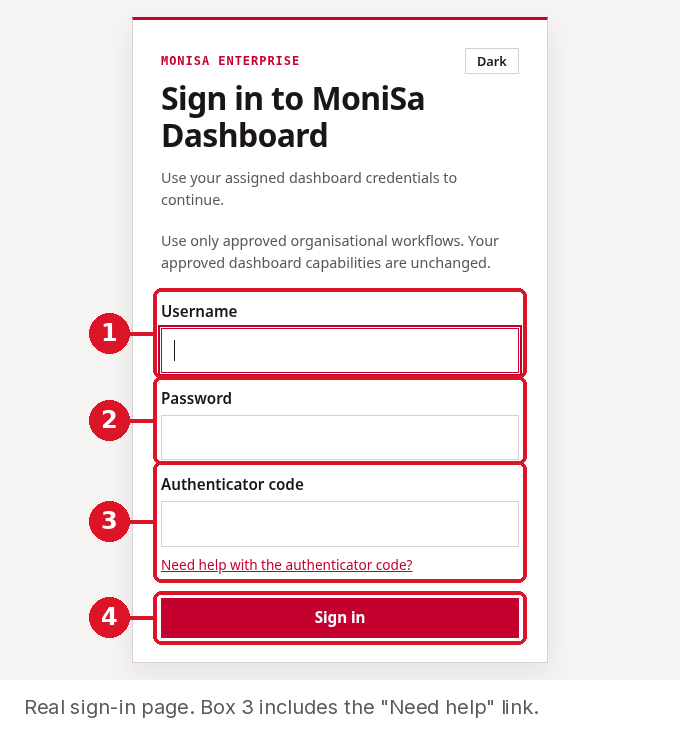
- Username: your MoniSa email.
- Your password.
- The 6-digit code from the app. Stuck? Click Need help with the authenticator code?
- Click Sign in.
Code not working?
- The code changes every 30 seconds. If it is about to change, wait for the new one and type that.
- Set your phone's date and time to automatic (Settings → Date & time → Automatic). A clock that is even a minute off gives wrong codes.
- Each code works only once. Wait for the next code before you try again.
- Check you picked the MoniSa Portal entry in the app if you have several.
- After several wrong tries the portal makes you wait a few minutes. That is normal.
New phone or lost phone
The code lives only on your phone. If you change or lose your phone, or delete the app, ask Sahil for a new setup link and repeat steps 1 to 4. Your old codes stop working as soon as the new link is made.
Never share your password, your codes, your setup link or the QR code with anyone, including people who say they are from MoniSa support.